
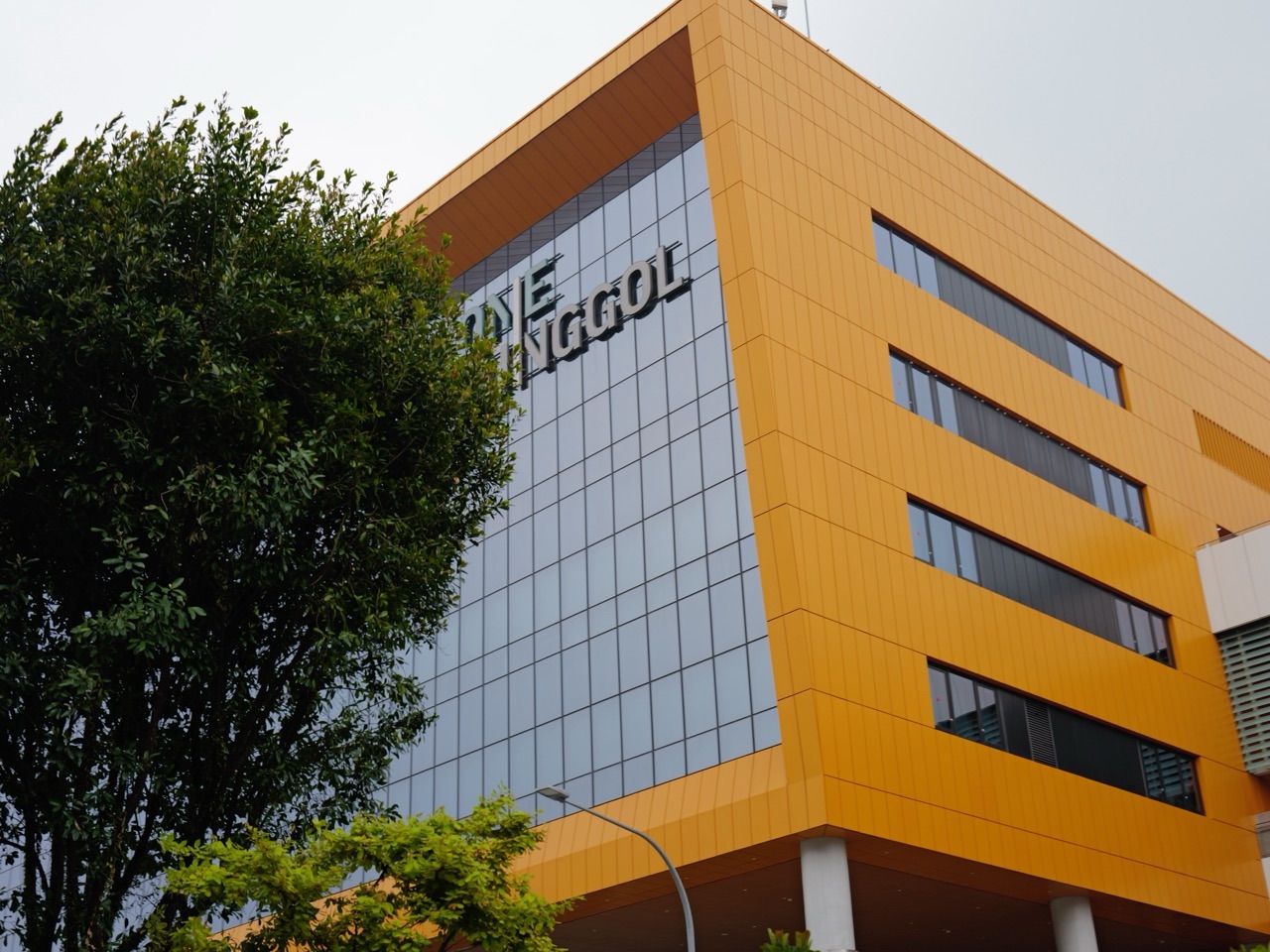
Punggol Regional Library Wi-Fi is provided through the Wireless@SG service used at NLB libraries. If you are bringing a laptop or tablet to One Punggol for online study, start with NLB’s official library Wi-Fi guidance and set up Wireless@SGx on your device.
NLB’s guidance supports setup using the Wireless@SGx app for iOS, Android, macOS and Windows. Follow the current instructions for your operating system; a connection working on your phone does not establish that your laptop is configured.
Library Wi-Fi also allows access to selected NLB eResources, including some newspapers and magazines available only at physical library locations. Check the access conditions of the resource you need before planning a research session around it.

Find what you need
Set up your device before studying · Check access to your reading material · Prepare a useful online study session · If your device will not connect · If you need a library computer
Set up your device before studying
Use the official IMDA Wireless@SGx setup portal or the route linked from NLB’s guidance. Choose the instructions for your device rather than guessing a password from a nearby network name.
Our practical suggestion is to finish setup while you still have a working Internet connection. Bring the device you will actually use and test an ordinary webpage when you arrive. Allow time for this before starting timed work.
Check access to your reading material
Search for the exact publication or database and read its access notes. Being connected to the Internet and being authorised to open a subscription resource are separate checks. A resource may also require an NLB account.
For school research, record the title, author and publication details while reading. Keep a short list of useful search terms so you can continue if one article is unavailable.
Prepare a useful online study session
Charge the device, download essential instructions and keep a local copy of work already started. These practical steps help you continue reading or writing if a webpage loads slowly.
Plan your seat independently using the library seat-booking guide. Wi-Fi access does not reserve a table, guarantee a power socket or establish permission to hold a voice call in a quiet reading area.
If your device will not connect
Identify the problem: does the network connect, does an ordinary webpage open, and does the particular resource load? This helps distinguish a device connection issue from a login or subscription-access issue.
Return to the current official setup instructions. Note the error message and ask for assistance rather than repeatedly entering unrelated passwords. Continue with downloaded materials or mobile data if available while resolving the connection.
If you need a library computer
Multimedia stations are a separate service with account and session conditions. Read NLB’s multimedia-station information when deciding whether to bring your own device.
On a shared machine, sign out of personal accounts at the end. On your device, save your work and check downloads before packing up. A short final review can prevent losing the document you came to work on.
Independent eduKatePunggol guide. Official sources checked on 11 October 2026. Service availability, access arrangements and charges may change; consult the linked official guidance for your visit.


